How to Set Up and Use the Answer Key in Google Forms
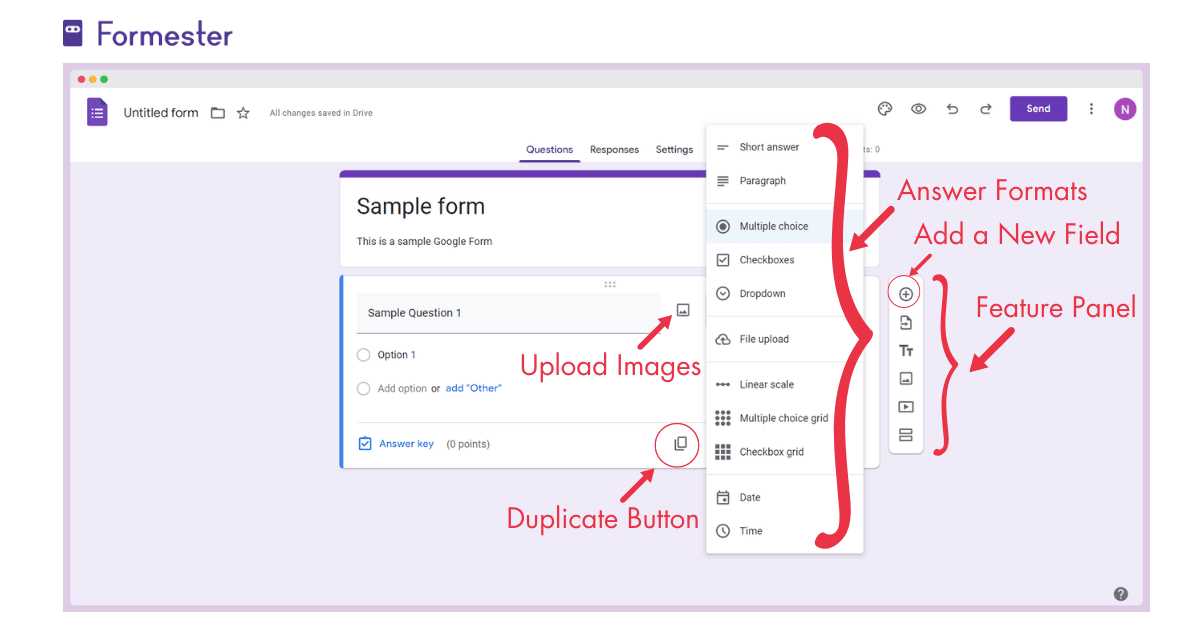
Set up automatic grading by assigning correct responses in your quiz. This feature allows you to quickly evaluate answers without manual intervention. Select the correct options for each question, and the system will handle the rest.
For each question type, be sure to specify the correct choice, whether it’s multiple choice, short answer, or dropdown selections. If feedback is available, configure responses for correct and incorrect answers to guide learners through their mistakes.
To ensure fairness, assign point values to each question based on difficulty or importance. This way, the grading system will reflect the weight of each answer. Customize this feature based on the quiz’s structure and intended outcomes.
Google Forms Answer Key Guide
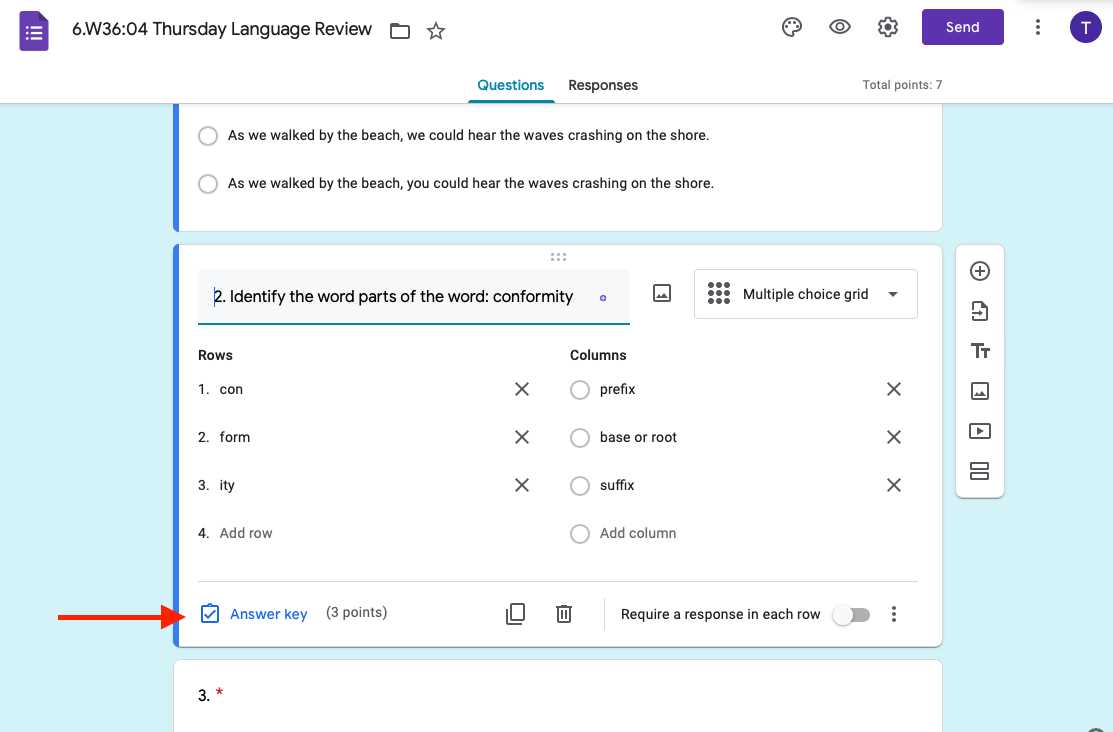
To create an automated grading system, start by selecting the correct options for each question. This will enable automatic evaluation when responses are submitted. For multiple choice questions, simply check the right answer, and for short-answer questions, define the correct text or numeric value.
After selecting correct answers, assign point values to each question. You can set different weights depending on the importance of each question in your assessment. This ensures that more complex questions contribute more to the final score.
- Set correct answers: Choose the correct responses for each question type.
- Assign point values: Adjust the score based on the question’s difficulty level.
- Provide feedback: Customize automatic feedback for both correct and incorrect answers.
For short answer or paragraph questions, consider adding specific criteria or keywords for correct answers. This will help the tool evaluate responses more accurately, even if the phrasing differs slightly from your expected answer.
Once the grading setup is complete, review the answer settings to ensure they align with your quiz goals. Test the quiz by submitting a response yourself to check that all points and feedback appear as expected.
How to Enable the Answer Key Feature in Google Forms
To activate automatic grading, open your quiz and navigate to the settings menu. Ensure that the “Make this a quiz” option is turned on. This will unlock the grading feature, allowing you to set correct answers and point values for each question.
Next, click on each question you wish to grade. For multiple-choice or checkbox questions, mark the correct options. For short answer questions, specify the exact answer or criteria for a correct response.
- Activate quiz mode: Go to settings and toggle the “Make this a quiz” option.
- Select correct answers: Choose the right option for each question type.
- Assign points: Assign point values to questions based on their weight.
After completing the answer setup, test the quiz by submitting a response yourself. This ensures that the grading system functions properly and displays the correct feedback and scores after submission.
Creating Multiple Choice Questions with Correct Answers
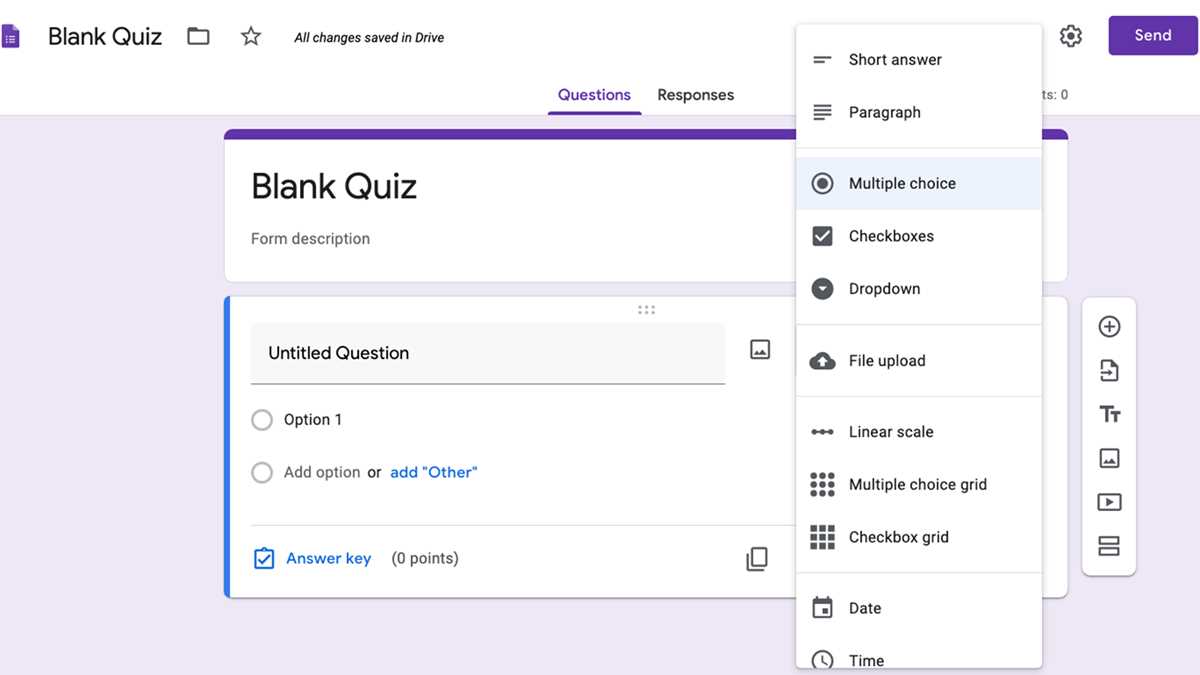
To create multiple choice questions with correct options, begin by selecting the “Multiple choice” question type. In the question field, enter your prompt, such as a statement or question that the respondent will answer.
Under the choices section, list all possible answers. To mark the correct option, simply click on the corresponding circle next to the right answer. Ensure each question has at least one correct response and that no answer is left unchecked.
Assign point values by clicking on the three dots in the lower-right corner of the question. Choose “Answer Key,” and then input the points for this question.
For clarity and ease, avoid overly complex phrasing or ambiguous answers. Keep choices concise and mutually exclusive to ensure clear, accurate responses.
Setting Up Point Values for Each Question
To assign point values to each question, begin by opening the “Answer Key” section for the desired question. This can be accessed by selecting the question and clicking the “Answer Key” button located at the bottom-right corner.
Once in the “Answer Key” section, input the desired number of points for the question in the “Points” field. This ensures that the system will grade responses based on this value.
If the question has multiple correct responses, you can assign points to each correct answer by selecting the appropriate checkboxes. Adjust the point values as necessary to reflect the relative importance of each question.
For multiple-choice or checkbox questions, after selecting the correct answers, be sure to review the total points possible to make sure they align with your intended assessment criteria.
For detailed control, use the “Answer Key” settings for each question type to create a customized scoring system that fits your needs. After configuring the points, you can preview how it will look for respondents and make adjustments if needed.
How to Add Feedback for Correct and Incorrect Responses
To provide feedback for correct answers, go to the “Answer Key” section for the specific question. After selecting the correct responses, you will see an option to add feedback. Click on the “Add Feedback” button under the correct answers and type your message. This feedback will be shown to respondents who select the correct response.
For incorrect answers, follow the same process. Click on the “Add Feedback” button next to the incorrect options and provide specific guidance or explanation to help learners understand their mistakes. This feedback will appear for those who select an incorrect response.
You can customize the feedback for each choice by adding unique messages for every possible answer. This ensures that the responses are more personalized and instructive, addressing both correct and incorrect selections.
Once you’ve added feedback, you can preview how it will appear for respondents. Make sure the messages are clear and constructive to enhance the learning experience.
Reviewing and Editing Answer Keys After Form Submission
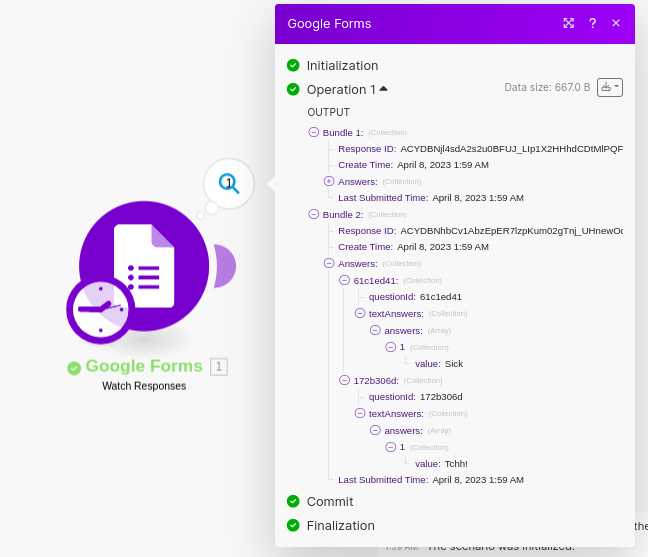
To review and modify the evaluation settings after a response has been submitted, open the form’s “Responses” section. From there, you can view individual submissions and identify any necessary corrections to the evaluation criteria.
To edit the scoring or correct answers, navigate to the “Answer Key” section of each question. If you notice an error or need to adjust the correct response, click on the question and update the answer choices or scoring values accordingly.
If feedback is provided for correct or incorrect responses, you can also adjust these messages. After selecting the question, update or refine the feedback text based on any insights gained from submissions.
Once modifications are made, ensure the changes are saved, and if necessary, notify respondents about any updated evaluations or corrections in the grading system.
Automatically Grading Responses Using Google Forms Answer Key
To enable automatic grading of responses, first, create a set of questions with correct responses defined in the “Answer Key” section. After selecting the correct options for multiple-choice or checkbox questions, assign point values for each question.
Once the correct answers and point values are set, the system will automatically grade each response upon submission. The system compares the user’s selections with the defined correct answers and assigns scores based on the predefined values.
To activate auto-grading, ensure that the “Collect email addresses” and “Limit to one response” options are enabled. These features help in tracking responses and applying automated scoring to individual submissions.
Review the graded submissions under the “Responses” tab, where the system will display scores for each participant, saving time and effort on manual grading.
Handling Complex Question Types with Google Forms Answer Key
For more intricate question formats, such as dropdowns, linear scales, or file uploads, it’s essential to define correct responses carefully. For dropdown or multiple-choice questions, each option can be linked to a correct response with point assignments.
For questions requiring text input (like short or long answers), it’s important to set specific responses or phrases that the system can recognize. While automatic grading is limited for open-ended responses, you can still assess them manually or set up a rubric that helps in evaluation.
For more complex evaluation, such as when using file uploads, ensure that you clearly define acceptable file types and sizes. Additionally, if you wish to incorporate feedback based on responses, each answer can be tailored to specific results, guiding the user to more detailed instructions or corrections depending on their selections.
In case of questions involving calculations or rating scales, ensure to set clear point thresholds for each level. The system can automatically assign points when the user selects a correct level or provides an accurate numerical response.
Sharing and Viewing Results with the Answer Key in Google Forms
To share results, open the form response page and click on the “Responses” tab. From there, you can either share individual results with respondents or provide access to a summary of all submissions. For individual feedback, you can email results directly to participants or allow them to see their scores after they submit their responses.
To enable respondents to view their grades, make sure to select the option “Respondents can see their score” before sharing the form. This option can be found in the settings section under the “Quizzes” tab, where you can also define which parts of the form they are allowed to view after submission (correct answers, points, or feedback).
If you want to view and share detailed results with colleagues or other stakeholders, use the “Summary” view, which provides a comprehensive overview of all submissions, including individual scores. Alternatively, you can export the results into a spreadsheet for further analysis and sharing.
For a detailed guide on how to manage form responses, refer to the official support page: Google Forms Help Center.